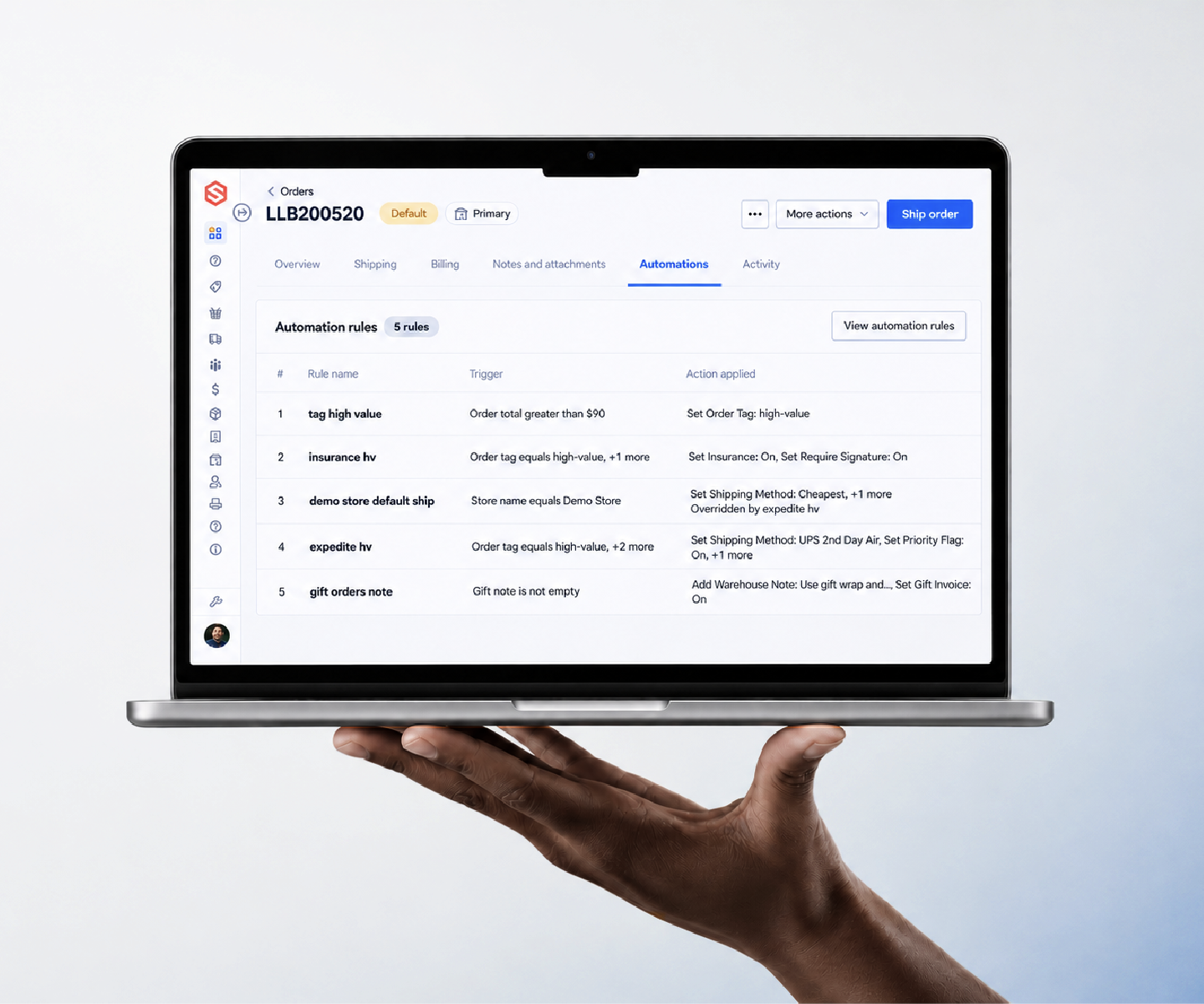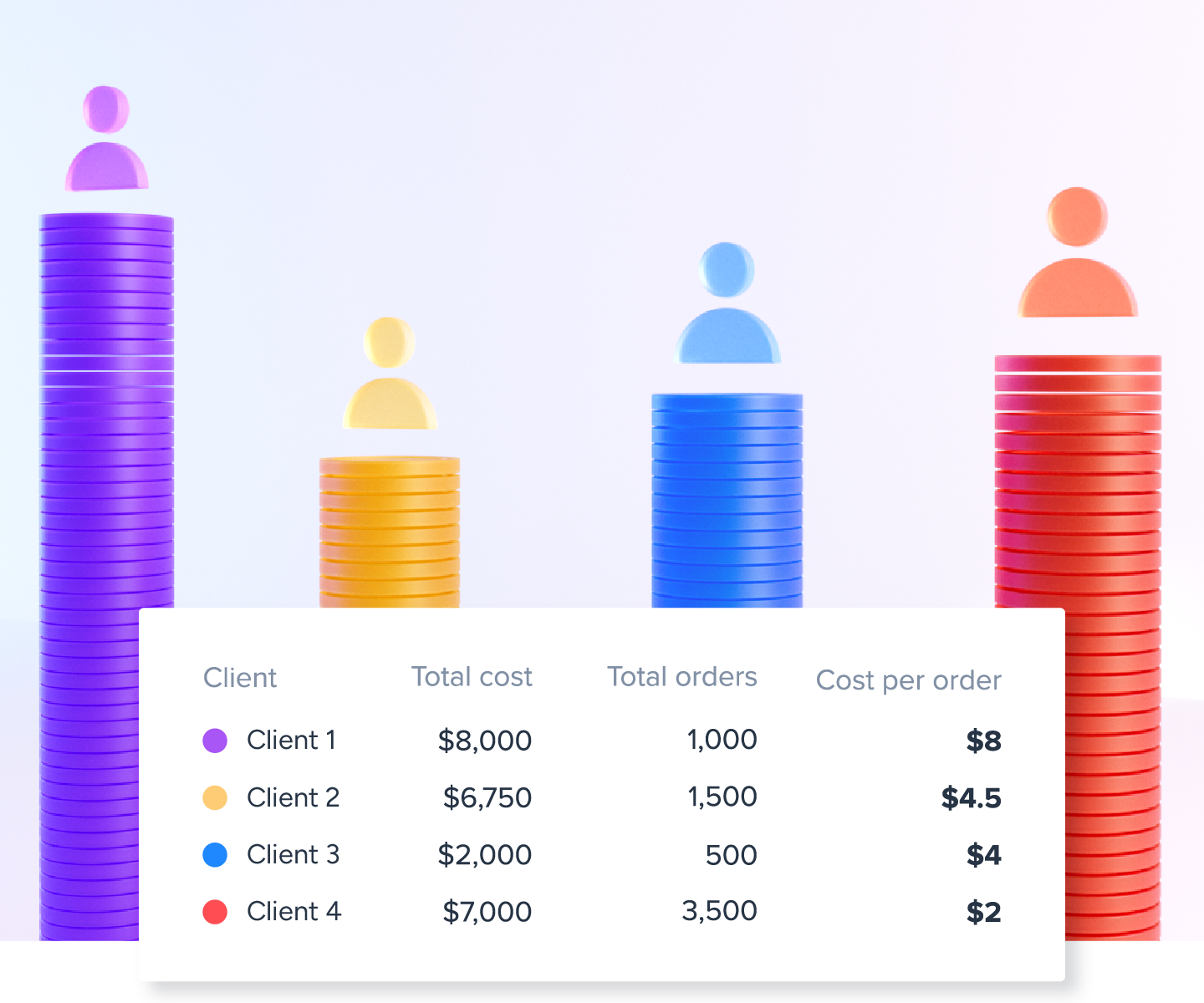


Clients review their orders, inventory, returns, inbound shipping plans, and reports in a portal that carries your logo.
Your brand. Your clients’ fulfillment view.
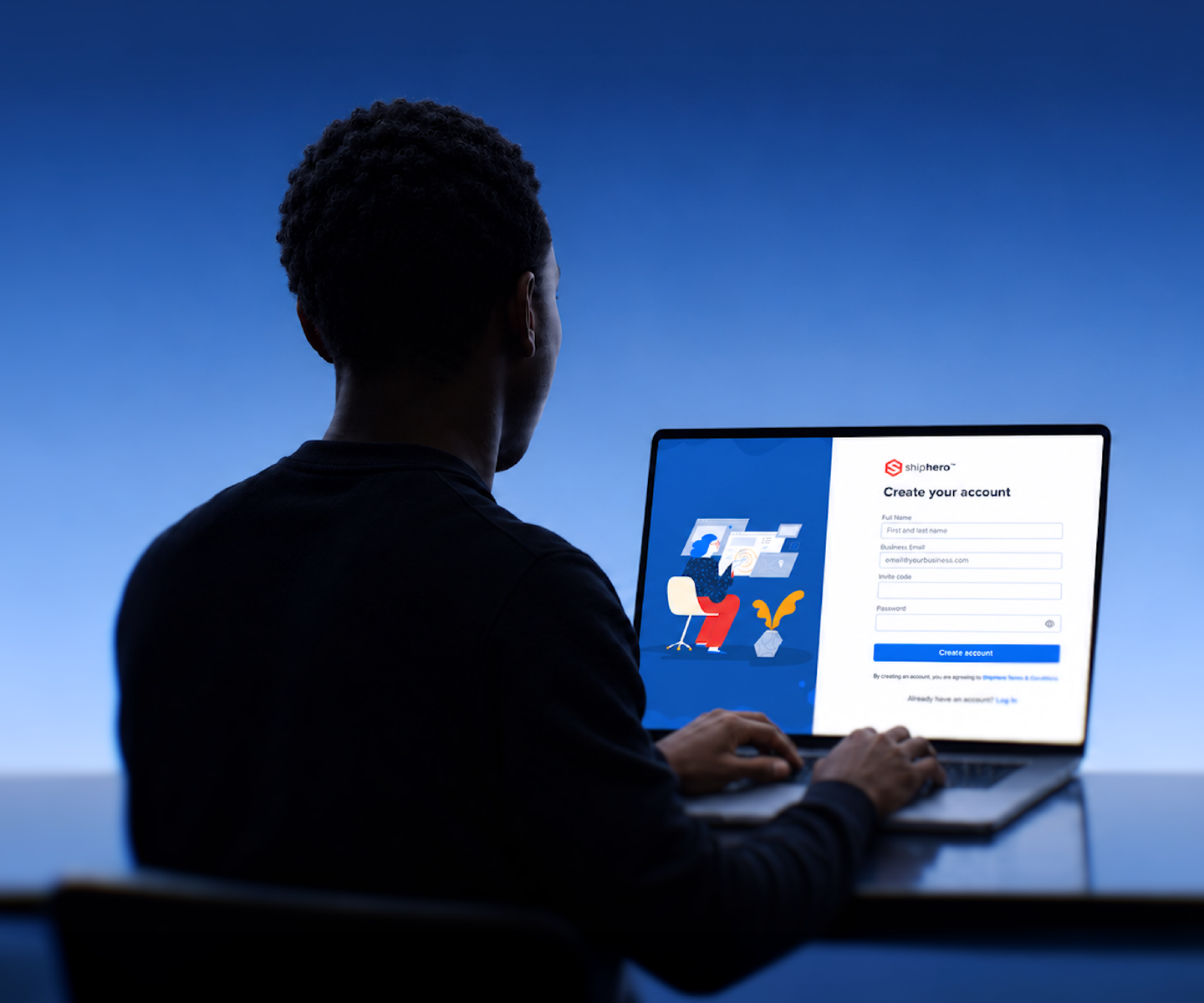





Add your company logo and request a login subdomain that uses your company name.
The portal supports your logo across its interface, invoices, shipping orders, labels, and email communications. Contact ShipHero Support to check availability for a login address such as yourname.shipsfor.us.
When inviting a client, choose the warehouses they will use. An unbranded client knowledge base provides guidance for their everyday tasks.
Your logo across supported client touchpoints
A custom login subdomain, subject to availability
Warehouse selection during client setup
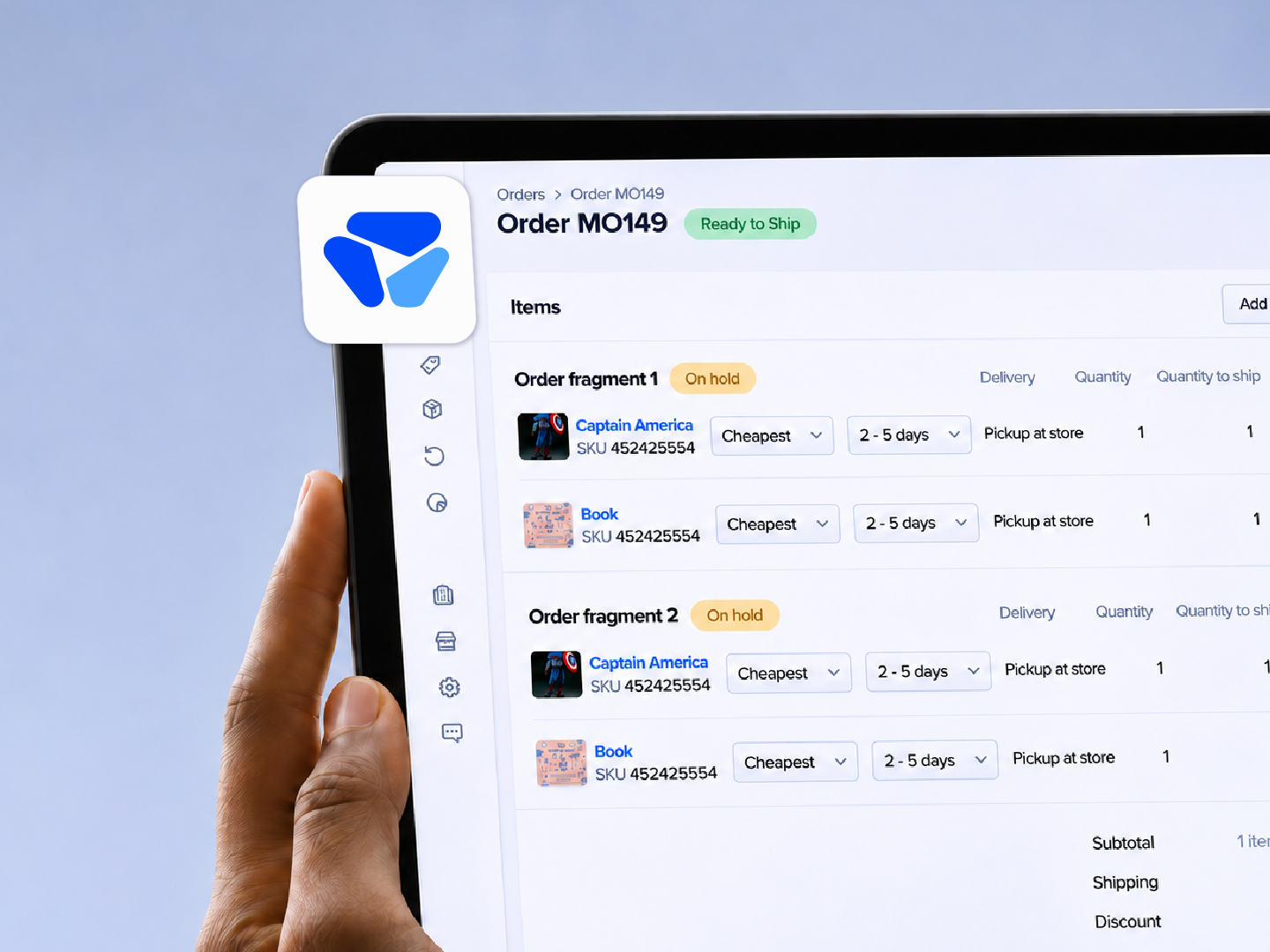
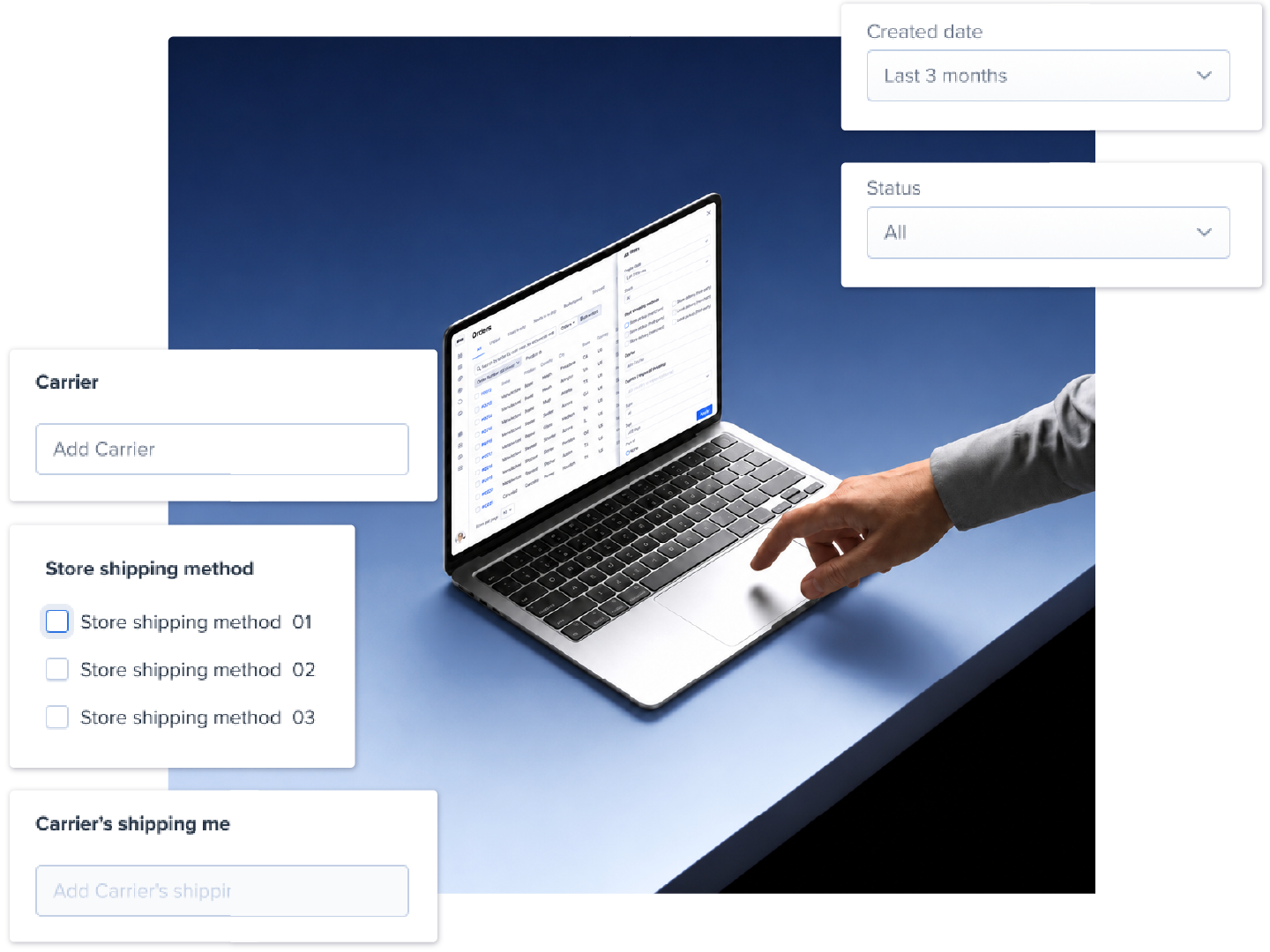
Clients can find orders, review stock, and track returns from their portal. Available actions and reports depend on each user’s permissions.
The Orders page supports searches by order number, customer name, or SKU. Clients can filter orders by status, create manual orders, and export order lists to CSV.
The Products page shows current inventory levels. Clients can search by product name, barcode, or SKU, then export their product list.
The Returns page shows progress through warehouse processing and completion. Clients can filter by date, status, or type, and open a return’s history.
Before warehouse processing begins, clients can edit order addresses, add or remove items, or cancel an order. Once processing starts, they cannot cancel it, change its items, or place it on hold to stop shipping.
Searchable orders and status views
Product searches and current stock levels
Return progress and history
Clients can upload inbound manifests and export reports from the portal.
For boxed shipments, clients upload a CSV manifest listing SKUs, box numbers, and quantities. They select the destination warehouse and vendor during setup.
For palletized shipments, the manifest also identifies each pallet. Clients select the packing type and pallet tag size, then print tags before sending their pallets.
Reports cover shipments, shipped items, inventory changes, serial numbers, and lots. Clients can filter results, choose columns, and export data to CSV.
Box and pallet manifest uploads
Warehouse and vendor selection
Exportable fulfillment and inventory history
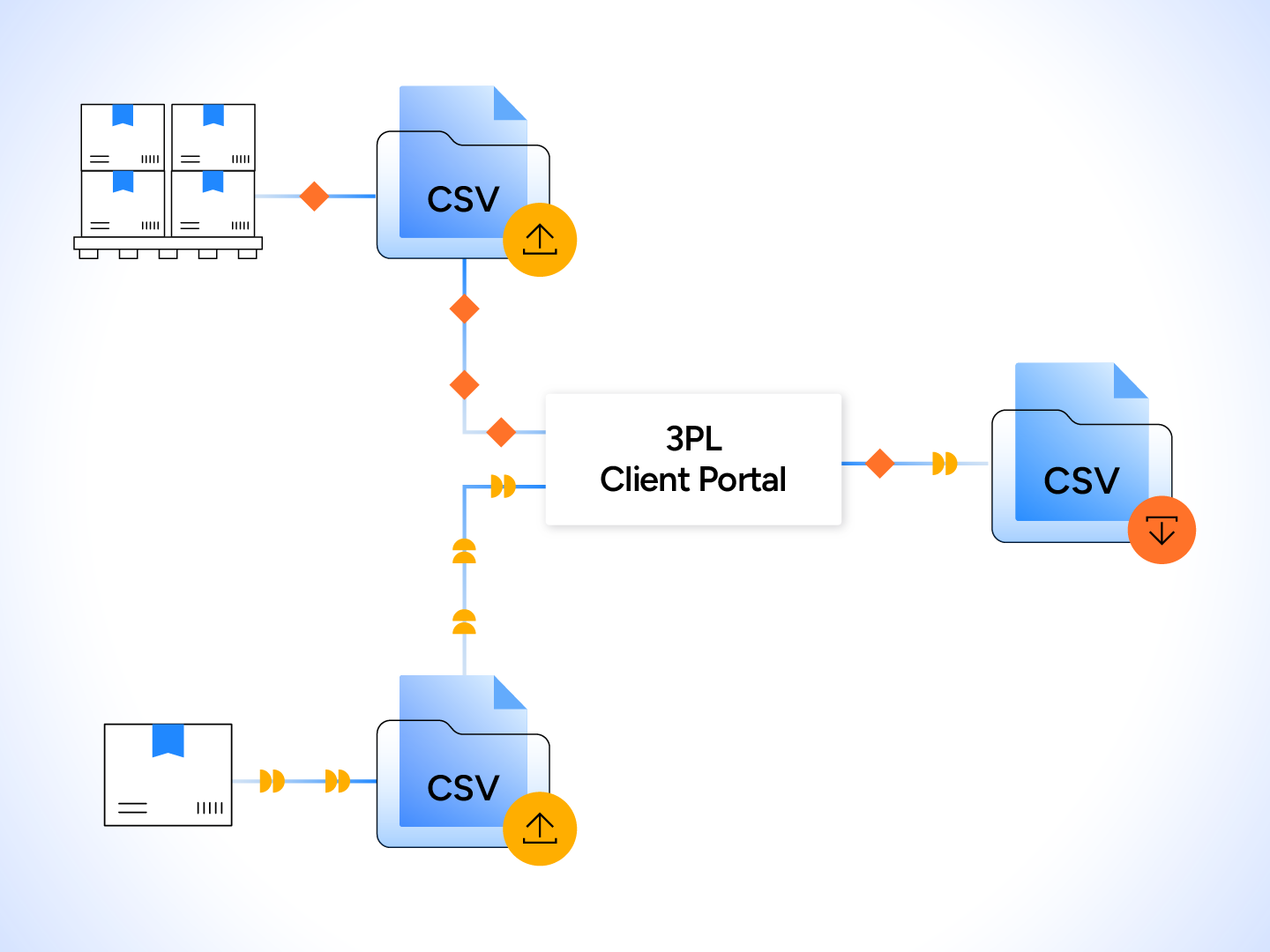
Request order-status information from the warehouse.
Clients search and filter their orders in the portal.
Send inbound shipment details outside the portal.
Clients upload box or pallet manifests.
Request fulfillment reports from the warehouse.
Clients filter and export fulfillment reports themselves.

“Client change requests piled up day after day, where we couldn’t ship orders until those things got done. It caused huge delays in our shipping, and it was kind of a nightmare situation.”
Can't find your answer? Our team can walk you through your setup.
Talk to our teamClients can search and filter their orders, create manual orders, check inventory levels, track returns, upload box or pallet manifests for inbound shipping plans, and export reports. Order changes have limits: once warehouse processing starts, clients cannot cancel an order, change its items, or hold it.
Yes. Add your company logo, which appears on the portal interface, invoices, shipping orders, labels, and email communications. Ask ShipHero Support about an available company-name subdomain, such as yourname.shipsfor.us.
No. Existing clients can use both. The portal focuses on supported self-service tasks, so screens and features can differ.
Yes. Order, product, and return lists support CSV exports. Report pages also let clients filter results and select columns before exporting.
Select their warehouses, enter the company name and designated administrator’s email, then send an invitation. The registration link expires after 48 hours. You can send another if needed.
Yes. The client needs an active account and an associated billing profile, even if you do not use 3PL Billing. The new warehouse and its default profile must already exist. Review the setup guide before adding it.