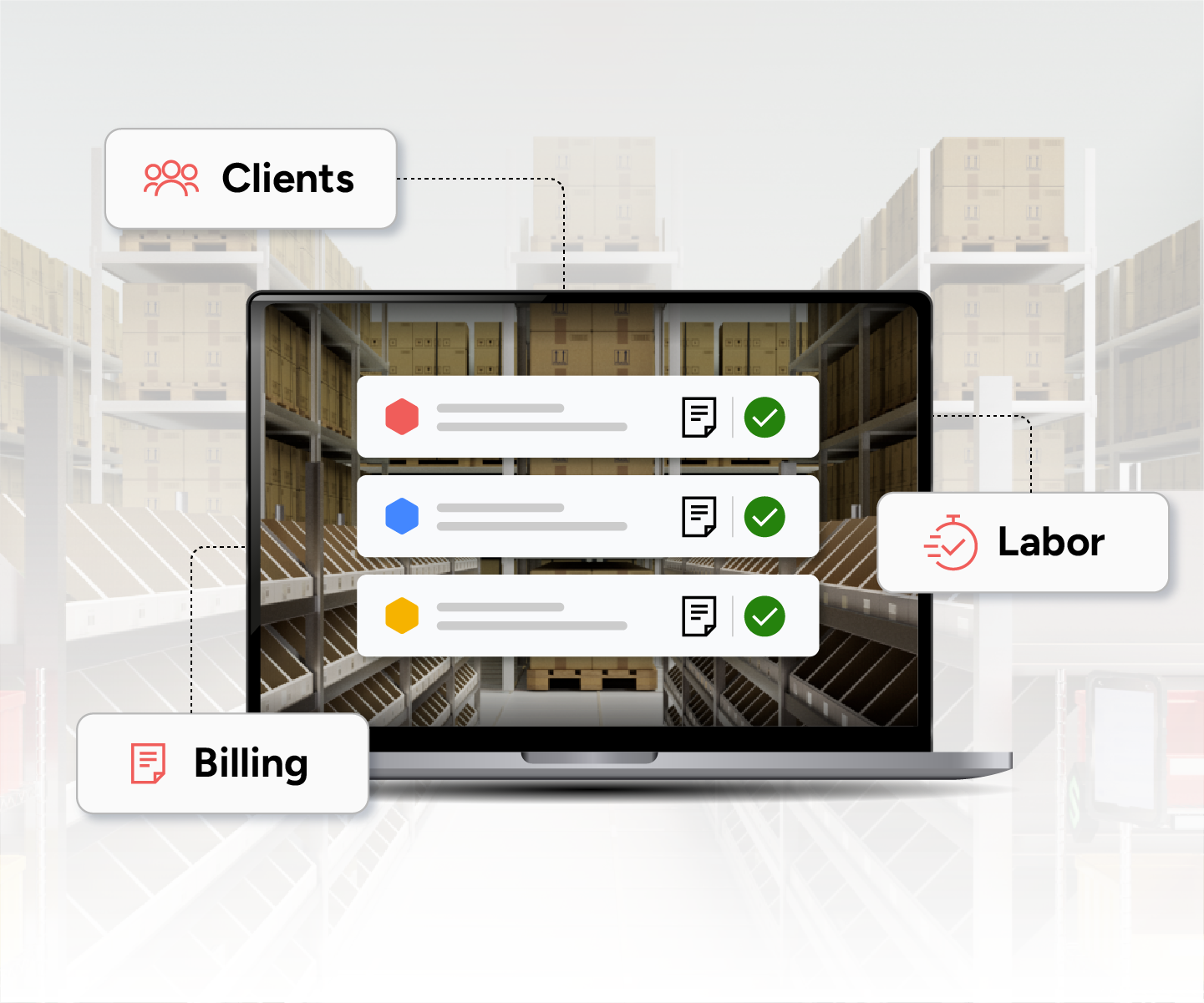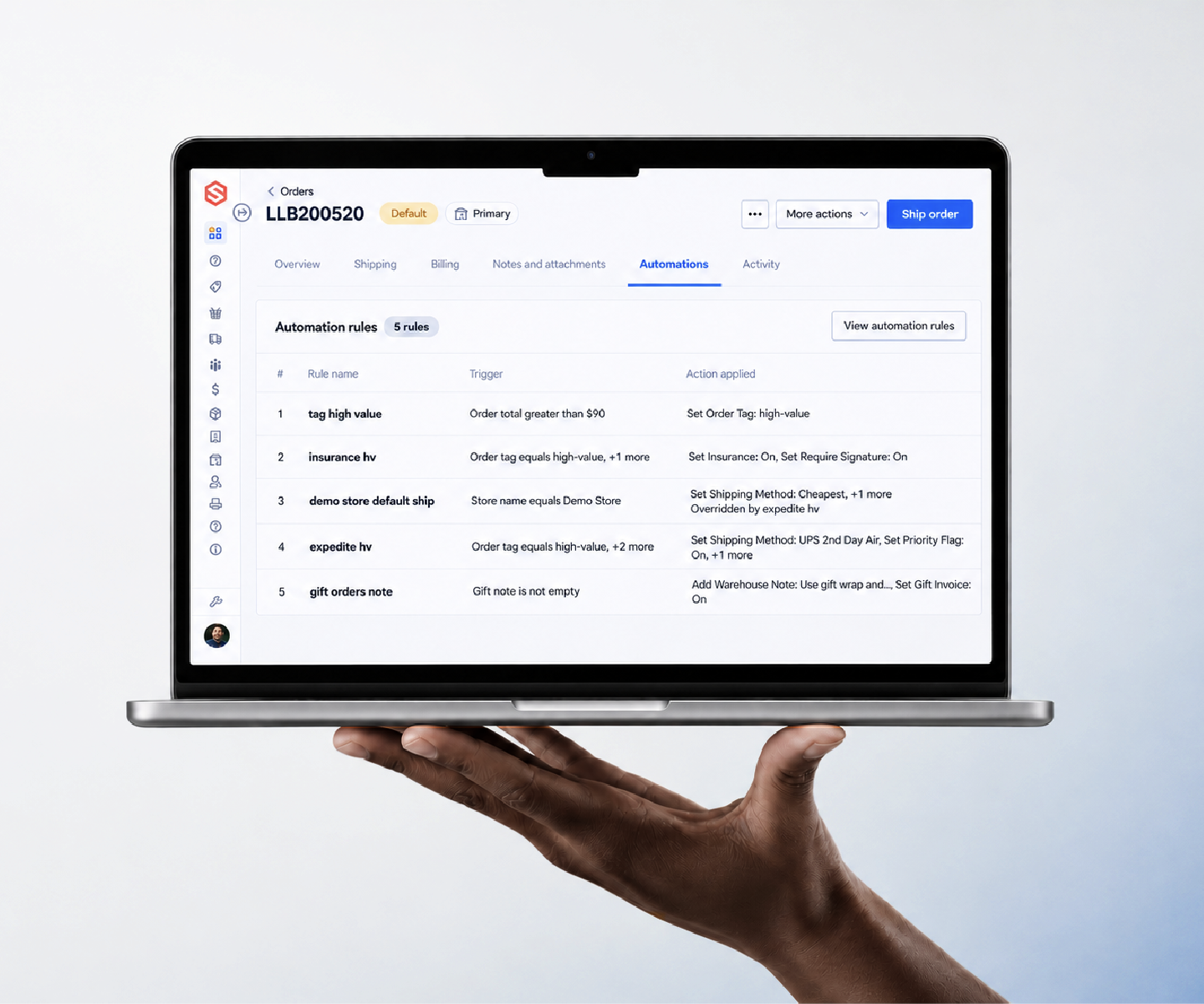


The Labor Cost Dashboard uses tracked warehouse activity and the labor inputs you configure to compare costs by client and warehouse. Labor cost is one input into client profitability, not the complete calculation.
Put client costs in view.
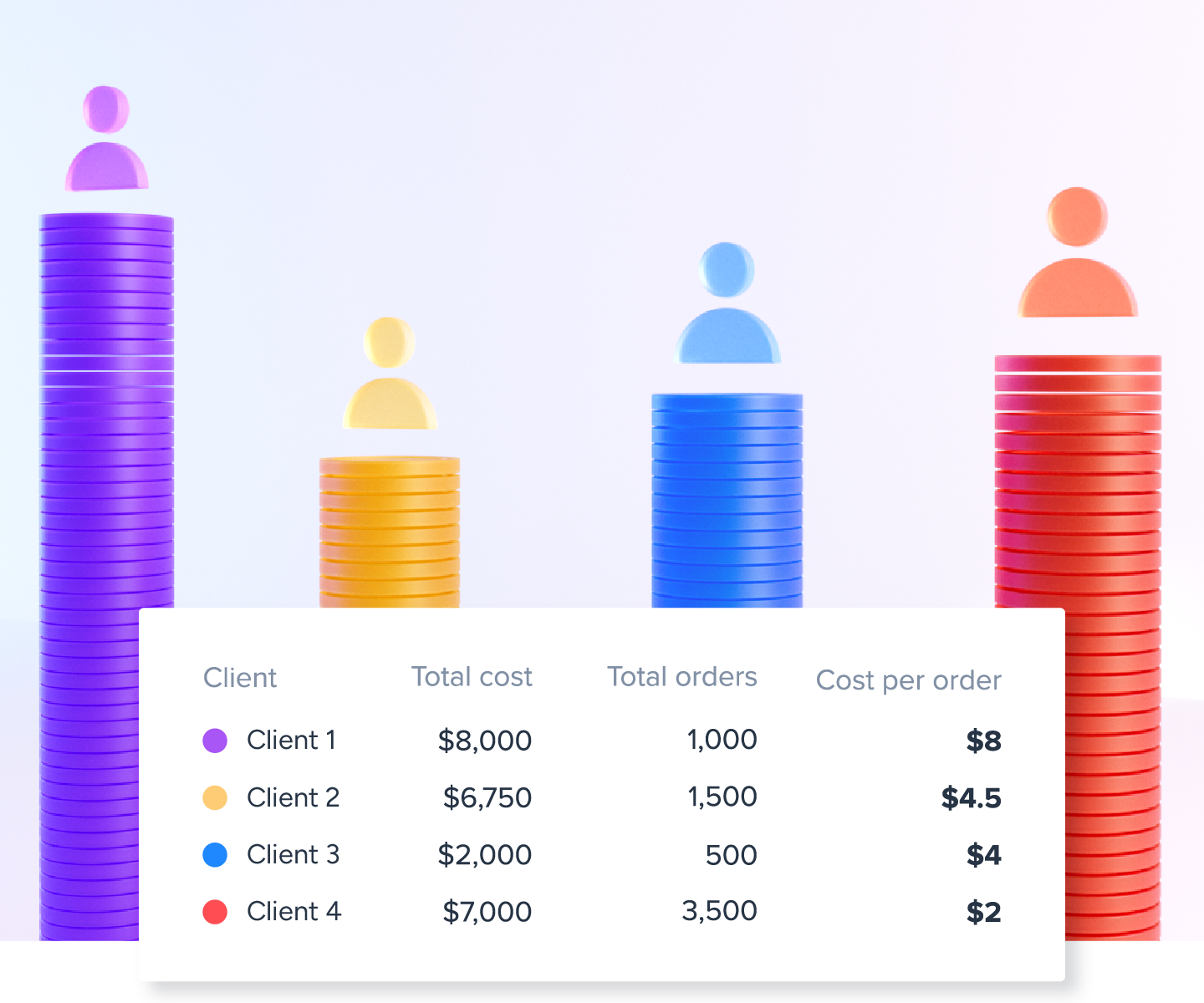





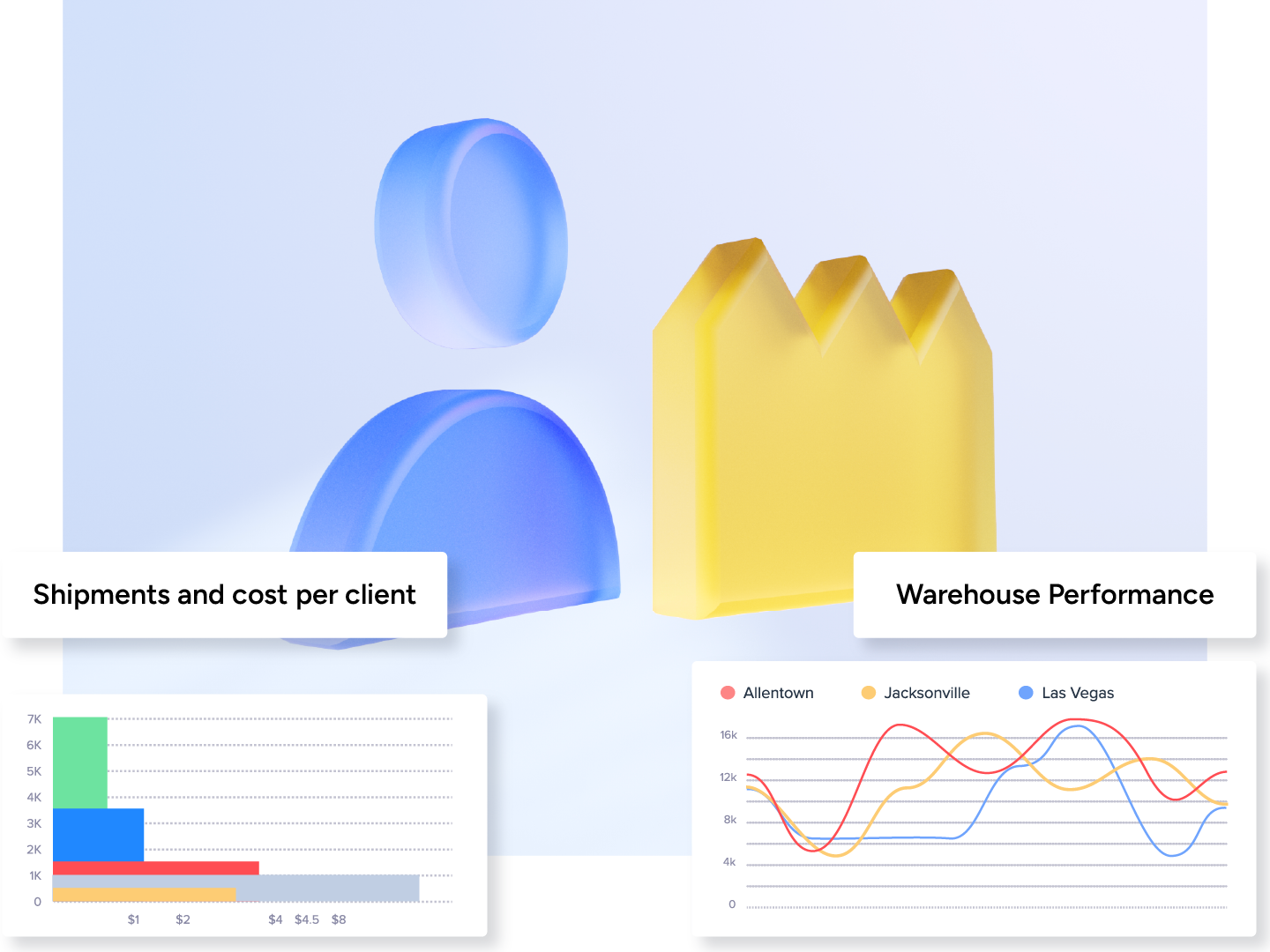
Compare client shipment volumes alongside their labor costs, then review performance across warehouses. The client graph shows which accounts cost more per shipment than others. Warehouse Performance shows order totals, average cost per order, and average time per order.
Use the same metrics across different periods to assess operational changes. The overview also separates regular and bulk shipments.
Client shipment and cost comparisons
Warehouse cost and time averages
Regular and bulk shipment views
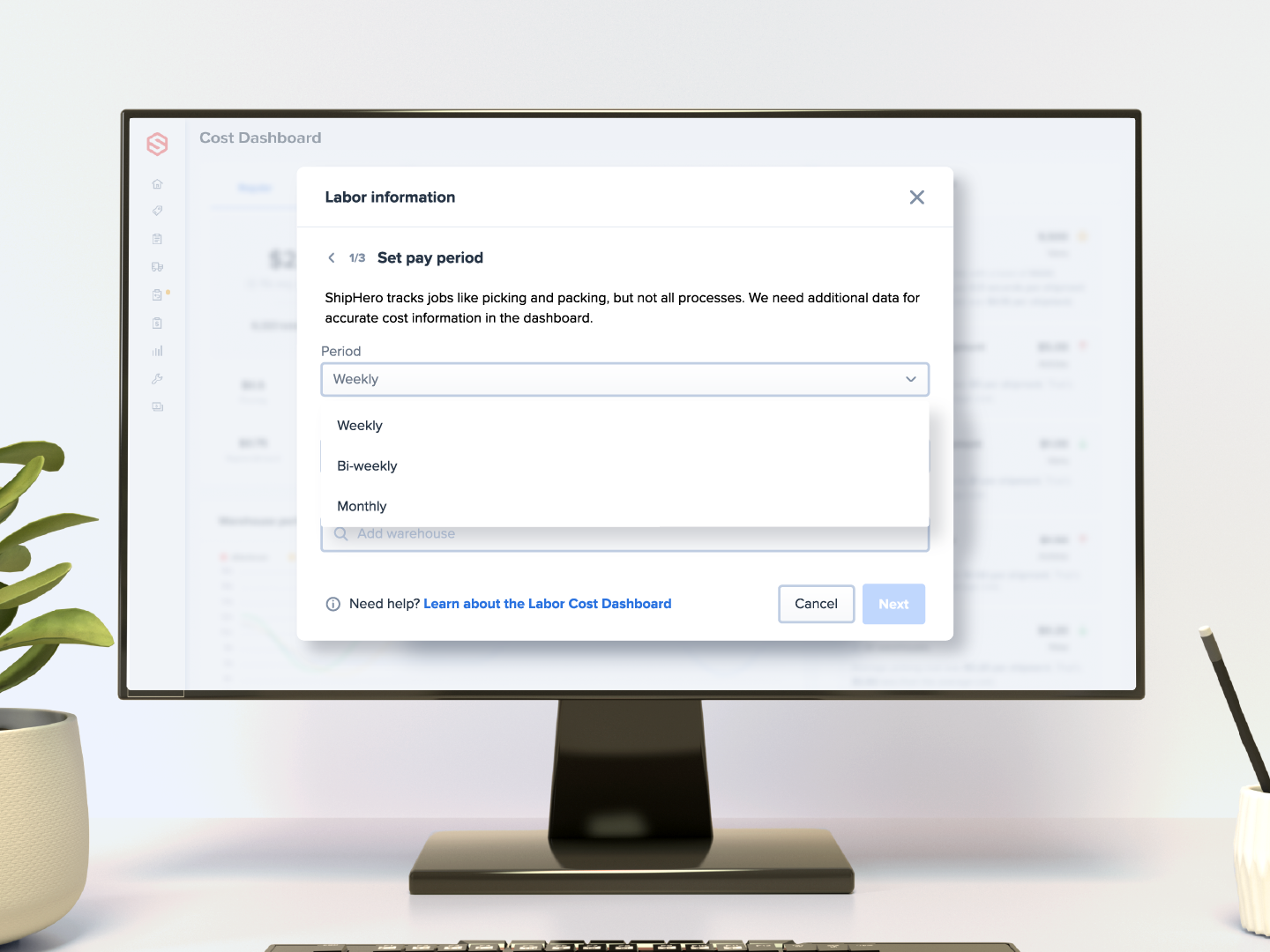
An admin enters payroll, average hourly wages, and bulk shipping time during setup. Include full-time and temporary payroll, and deduct separately billed special-project labor. Keep costs and rates in one currency.
Choose weekly, bi-weekly, monthly, or custom cost periods to match your analysis.
Before setup, preview figures are approximate. A warehouse without labor information does not appear until that information is entered.
Warehouse-specific labor inputs
Configurable cost periods
Client-specific bulk shipping times
Switch between shipment, line-item, and unit cost views. Detailed tables organize costs by job, shipment, or warehouse. Client rows expand into warehouse detail. Select the columns you need and export any table as a CSV.
Regular-shipment costs combine picking, packing, inventory, and other warehouse activity costs. Calculations also account for breaks, management, and similar overhead.
Three cost views
Client and warehouse detail
Selectable CSV columns
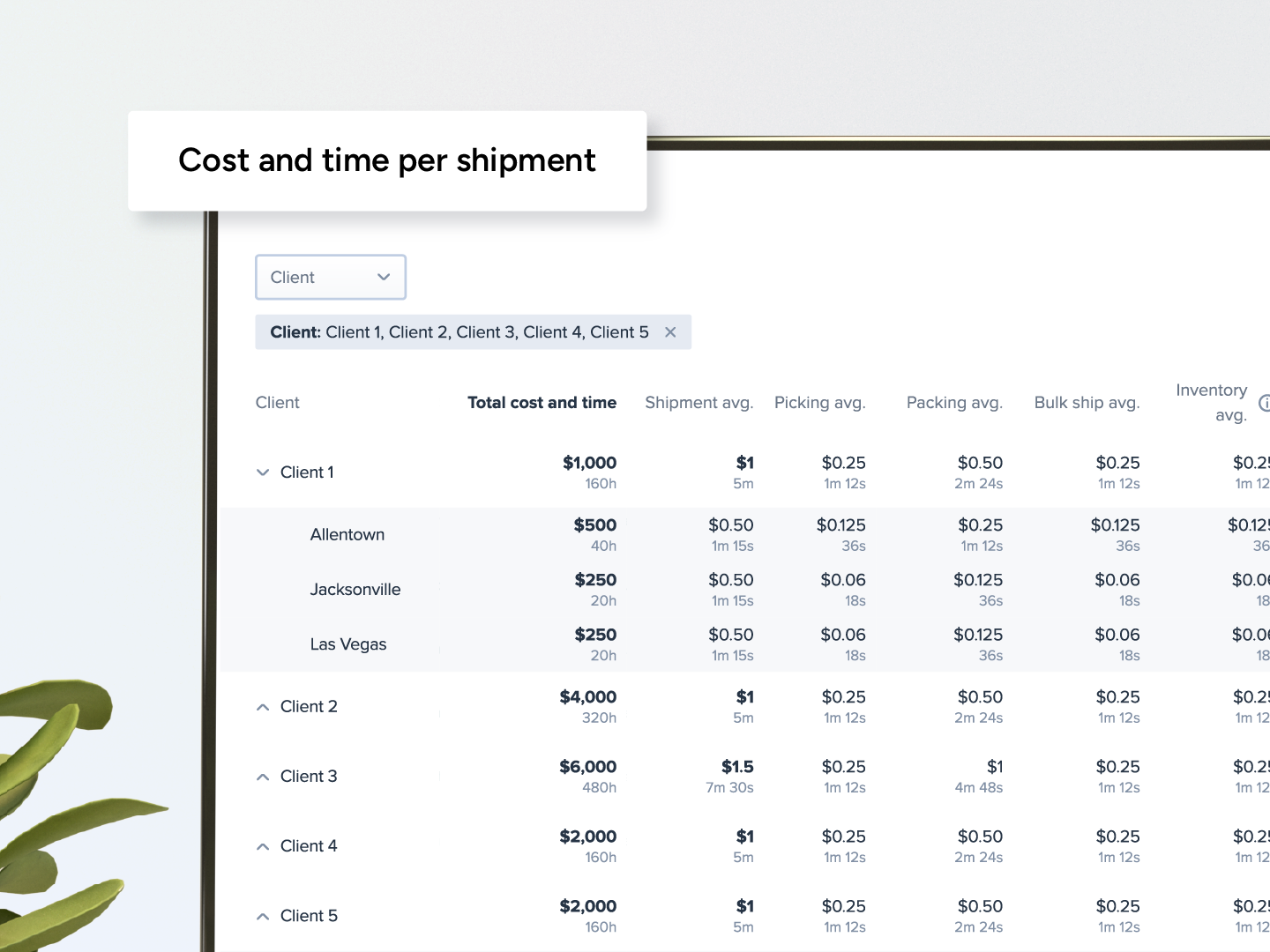
Compare clients by shipment volume alone.
Review shipment volumes alongside client labor costs.
Review warehouse order counts without cost and time context.
Compare order totals, average costs, and average times across warehouses.
Judge a process change without a consistent cost benchmark.
Compare the same dashboard metrics across different periods.
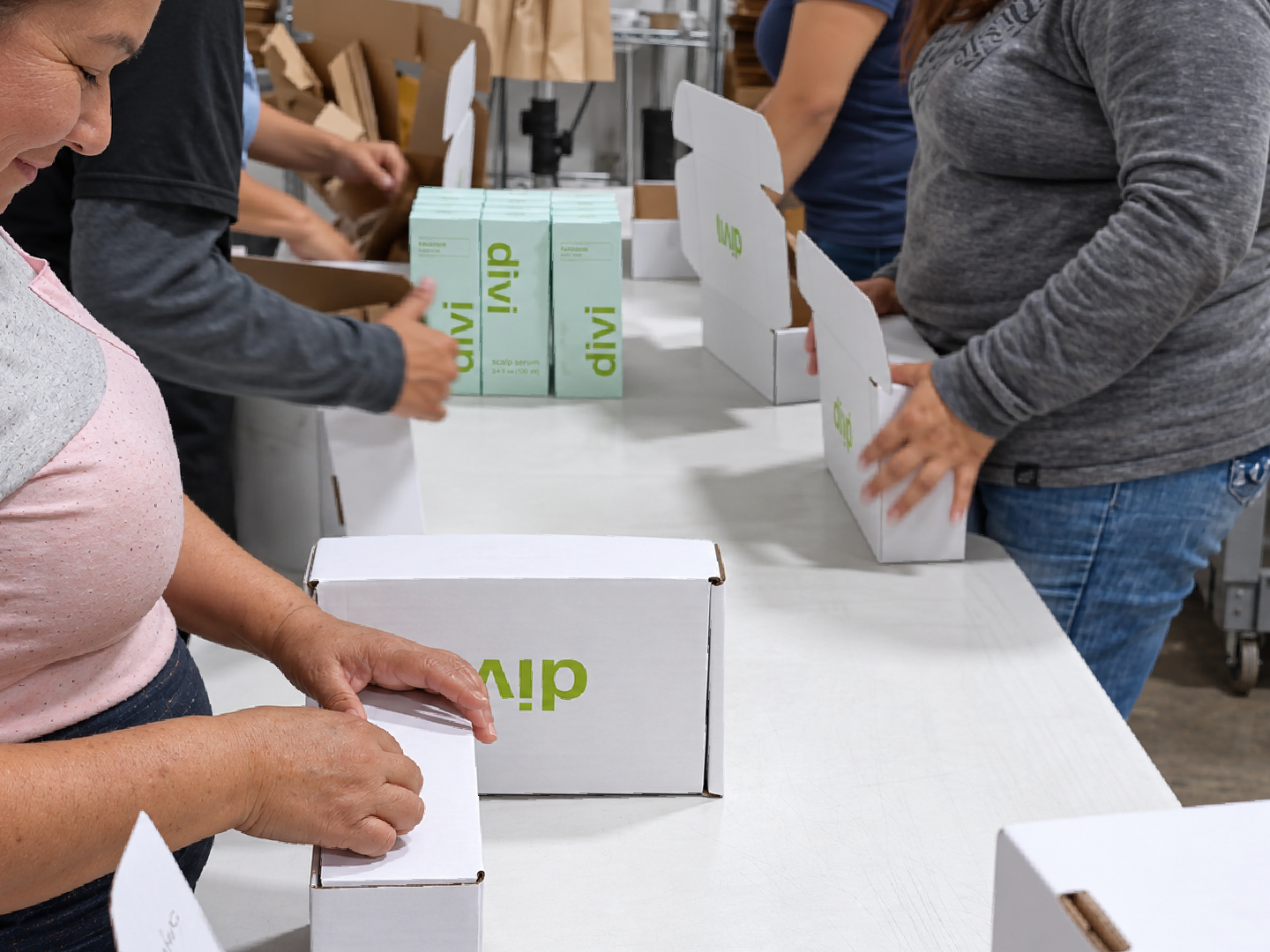
"ShipHero helped us improve our daily order output from 3,000 to 8,000."
Drew Horner
CEO and Founder, Deliverzen
8,000
orders a day, up from 3,000
2.7x
daily order output since go-live
70%
fewer customer service tickets
Can't find your answer? Our team can walk you through your setup.
Talk to our teamNo. Preview mode uses approximate figures before you enter labor information. Complete admin setup before relying on those costs.
No. Picking and packing are among the tracked jobs, but not every warehouse process is tracked. The dashboard also needs your labor inputs.
Yes. Setup supports client-specific bulk times instead of one average.
No. Insights always covers yesterday across all warehouses, regardless of filters. The cost-view selector also leaves Insights and Warehouse Performance unchanged.
Changing Bulk Ship Cost Per Order or Hourly Labor Cost affects historical calculations. Labor-cost entries apply to their selected period, and periods without an entry use the most recently configured cost.
Use it for labor-cost analysis. Its documented calculations cover warehouse labor activities and cost inputs, not a complete client profit-and-loss statement.