

Create rules for multiple clients from your 3PL account. Each selected client receives an editable copy. Available options depend on client configuration and your access.
Reuse the setup. Keep each client’s rules separate.
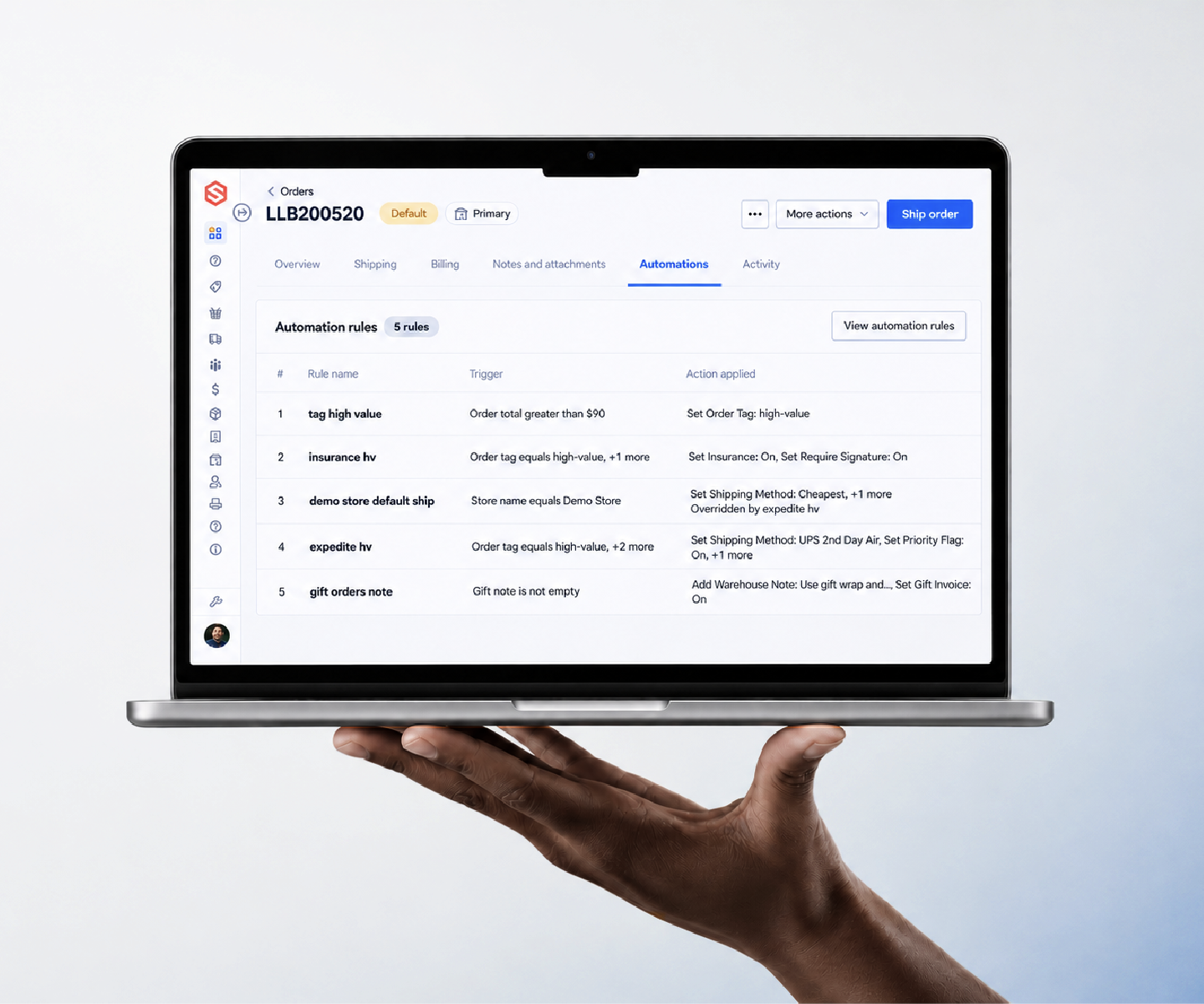





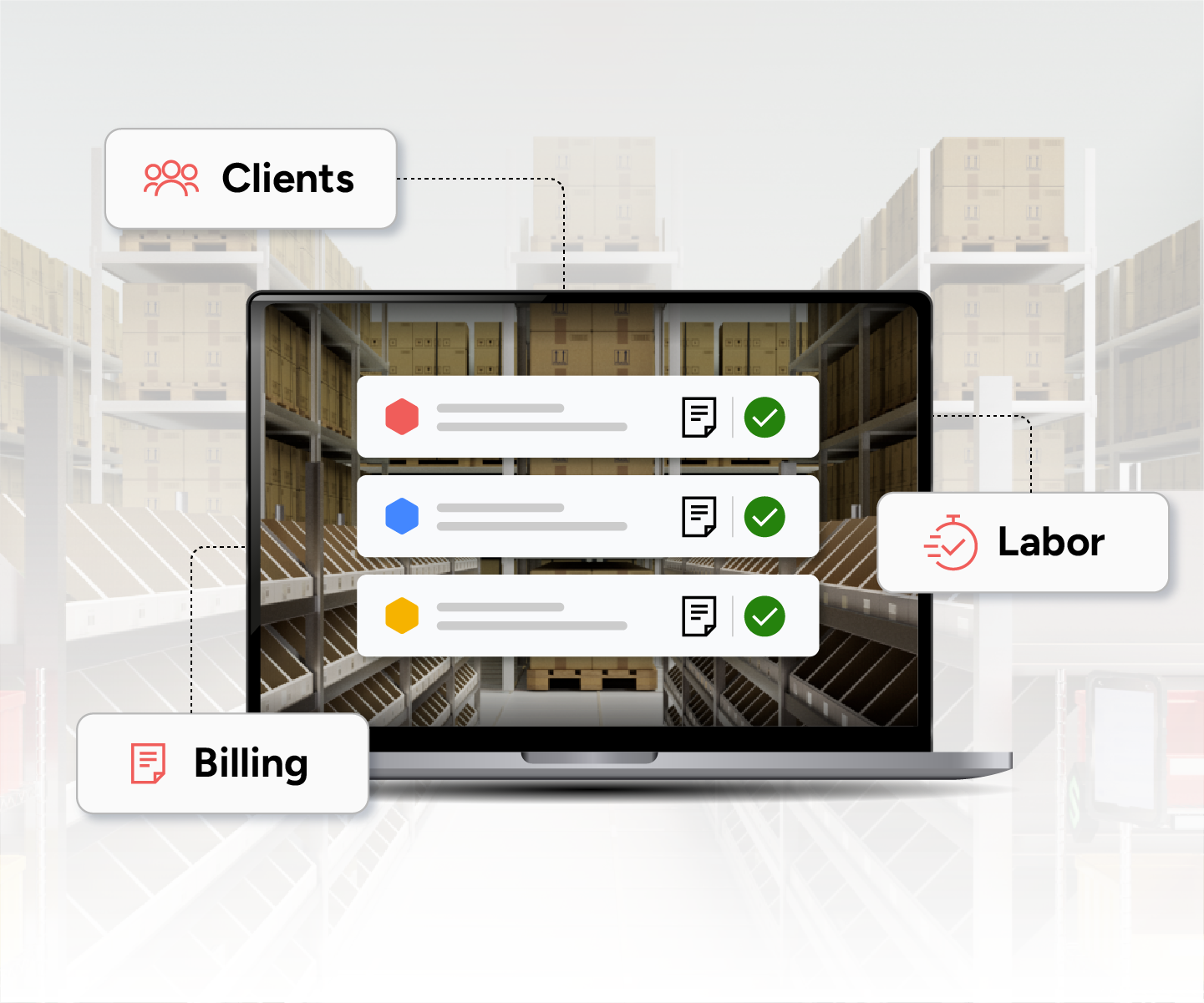
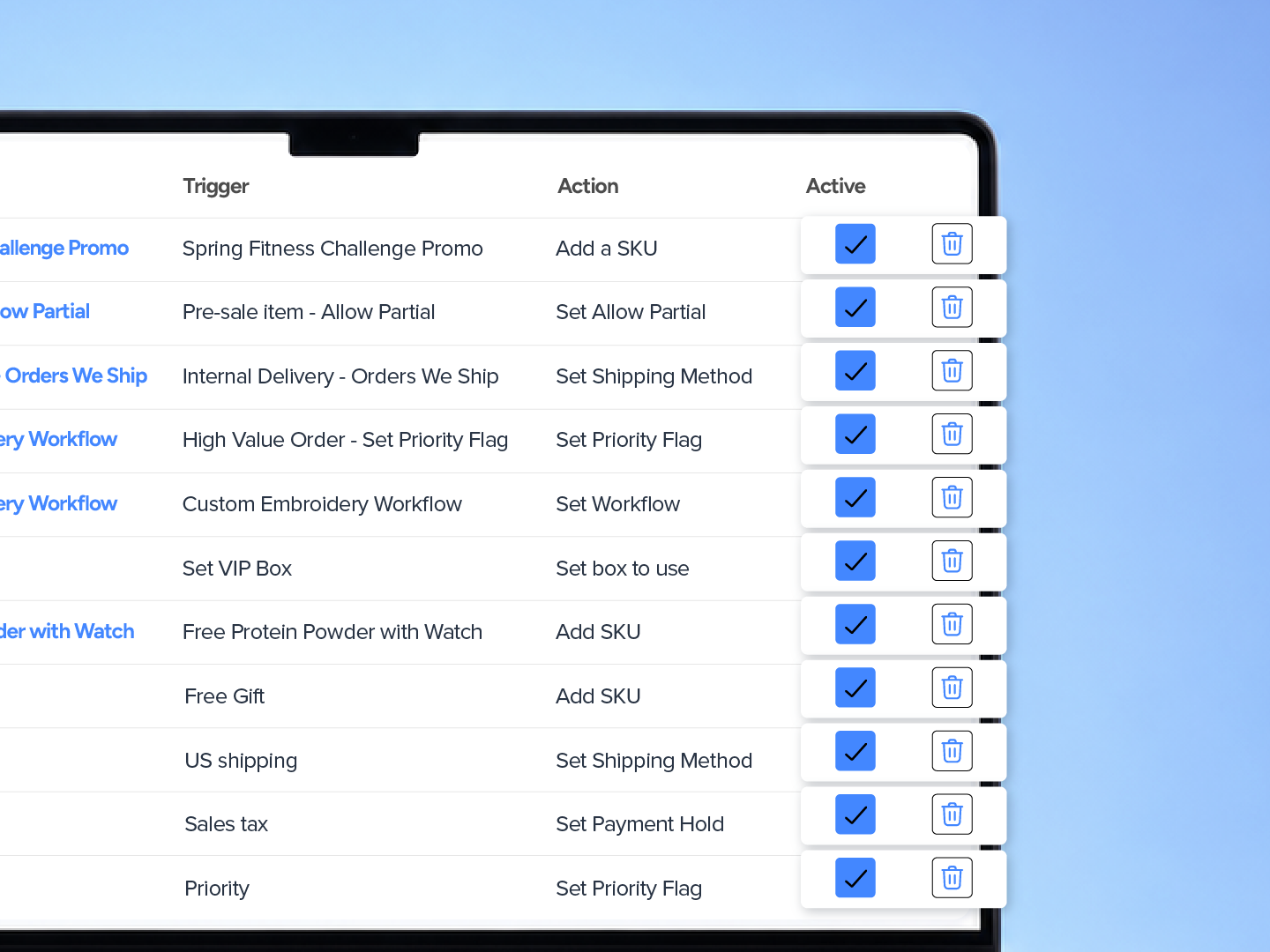
Manage rules for permitted clients from the Automation Rules page in your 3PL account. The Client Name column identifies each rule’s owner. Filter to one client or search by name, trigger, or action. Select rules across clients to activate, deactivate, or duplicate them together.
Each client has its own rule order. To reorder rules, select that client and clear the search. Rules run from top to bottom, so later rules can override earlier ones.
Client ownership visible beside each rule
Search by name, trigger, or action
Bulk actions across selected client rules
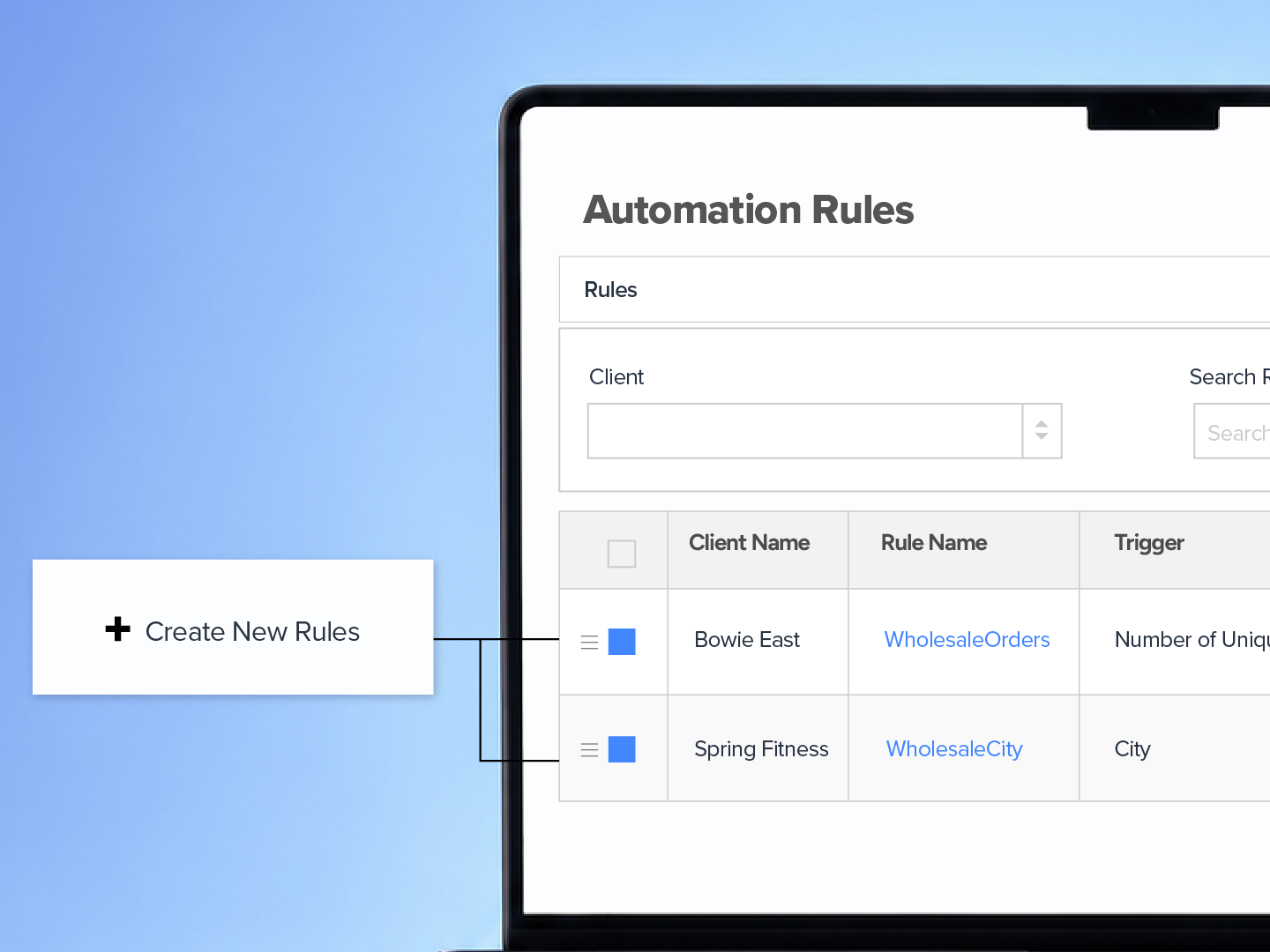
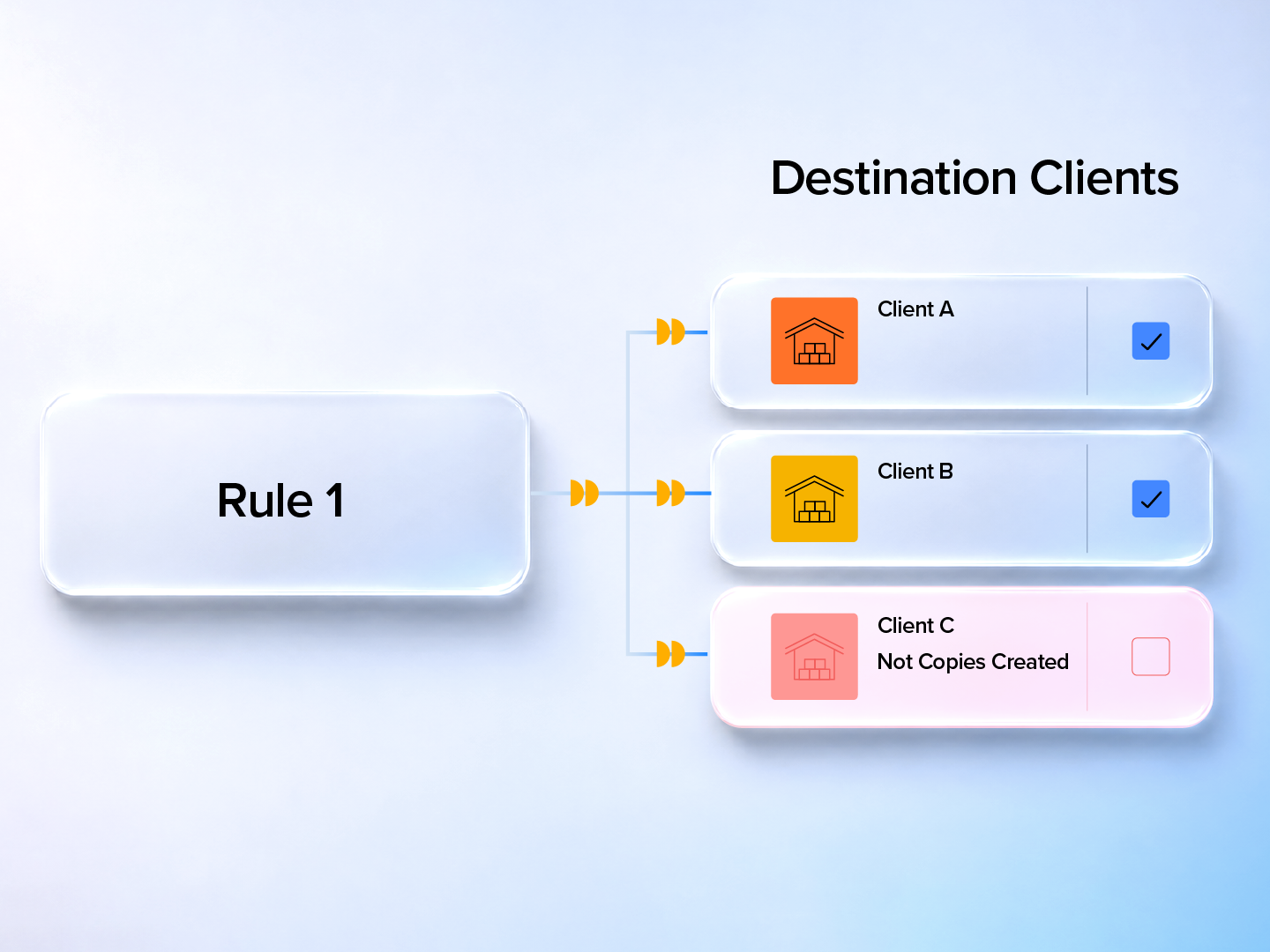
Yes. Select multiple permitted clients to create a separate, independently editable rule for each. ShipHero checks the request against every selected client before creating anything. If one cannot support it, no rules are created.
Multi-client creation excludes options tied to one client’s records, such as warehouses, vendors, shipping methods, shipping boxes, and fulfillment statuses. Build those rules for one client at a time. Eligible existing rules can also be copied to other clients.
New rules are active immediately. Validation checks the configuration, not whether a rule produces the result you intend, so review it before creation and verify the behavior for each client.
One creation step for supported shared logic
A separate rule owned by each client
Every selected client checked before creation
Select an existing rule and its destination clients to copy eligible triggers and actions. Portable values copy directly. Other values require a matching or available destination record. Client-specific values, including client-owned lists and Change SKU actions, block cross-client duplication.
ShipHero validates every selected rule against every selected destination before creating copies. One incompatibility rejects the request. Duplication copies configuration, not catalogs, carrier connections, addresses, or credentials.
The three paths start differently: rules created for several clients start active, cross-client copies retain the source’s active or inactive status, and copies made within the same account always start inactive. An active copy starts running on new orders immediately. Review each copy’s values and rule order. Supported SKU actions still need catalog checks because ShipHero does not verify destination SKU existence.
Reuse supported triggers and actions
Check destination records and eligibility
Review status before relying on a copy
Open client accounts individually to find or pause rules.
Find permitted client rules centrally and deactivate selected rules together.
Rebuild the same supported triggers and actions for each client.
Create separate rules for selected clients in one operation.
Re-enter an existing configuration and check destination records manually.
Copy eligible configuration after validation, then review each client’s result.
“ShipHero really understands warehouse operations. We happily mention it on our prospect calls because, one: we know it has a great reputation. Two: it has great features.”
Arsen Janikyan
CEO and Founder, Ops Engine
6,000
sq ft starting footprint, with workflows built to scale
5
months evaluating WMS options before choosing ShipHero
2 to 3
clicks to set up a Shopify connection
Can't find your answer? Our team can walk you through your setup.
Talk to our teamYes. Each rule is owned by one client. Rules created for several clients become separate copies that can be edited independently.
No. Client-owned lists, Change SKU, email, callback, tax-identity, and sold-to-address actions are blocked across clients. Other values depend on destination records and carrier eligibility; consult the duplication guide before reusing them.
New rules start active. Cross-client copies keep the source’s active or inactive status, while copies within the same account always start inactive. Review status before you rely on any copied rule.
The 3PL account shows only clients the signed-in user is permitted to manage. Copying between clients requires access to both the source and destination accounts.
No. Creating or editing a rule does not retroactively update orders already in ShipHero. Verify the configuration on a new matching order and check its order history.
No. Validation checks supported configuration and required destination references, not the intended outcome for that client’s orders. Some supported SKU actions copy without checking destination SKU existence, so review catalog values and test the result.