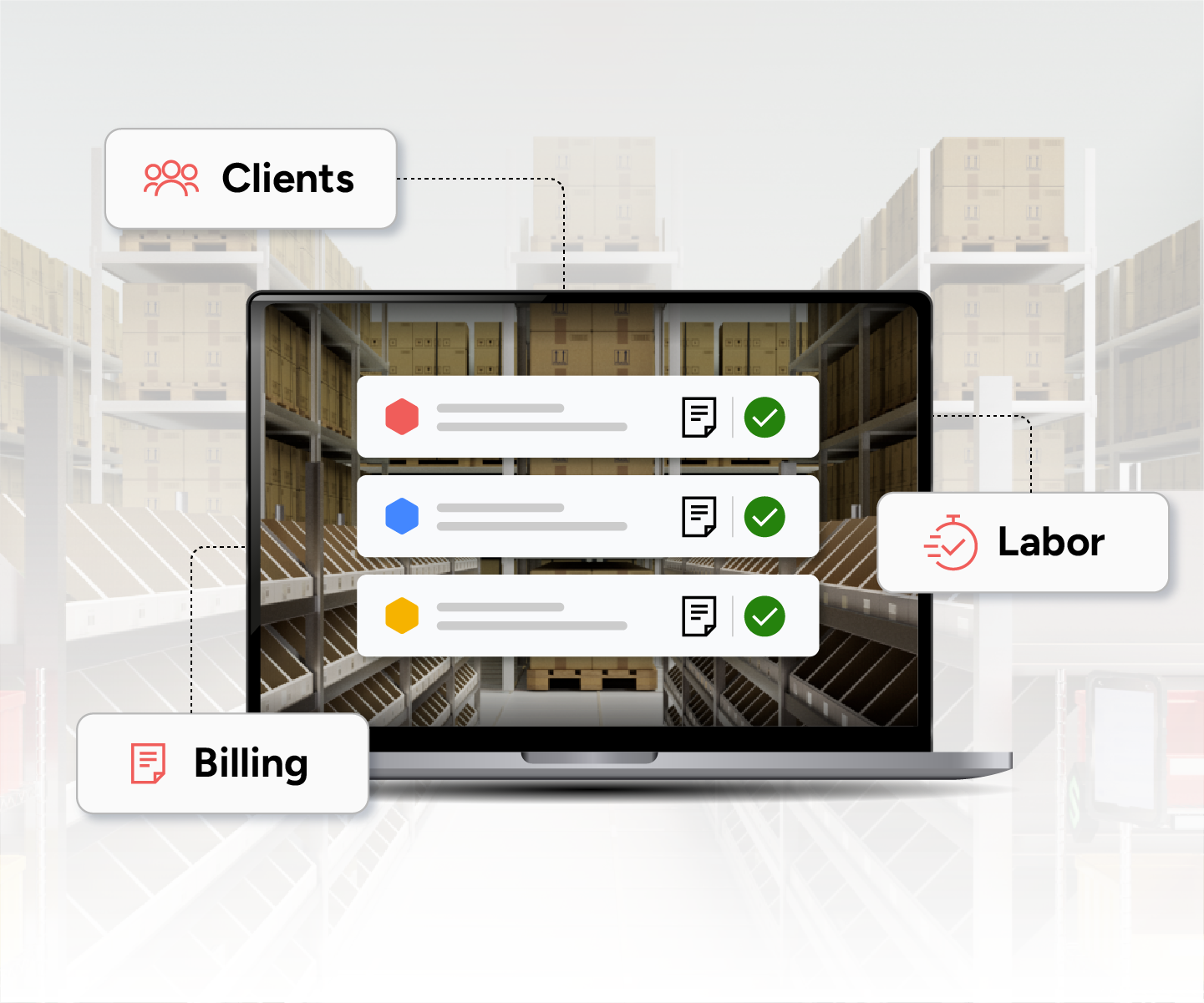


Give your team access to the clients they support. Configure client settings and warehouse connections, with responsibilities defined at each account level.
Keep client setup organized.






Admin 3PL users can access every client account. Non-admin users switch only into the clients assigned to them, using the account selector.
Assign client accounts to non-admin users; changing another user’s assignments requires user management permissions. Warehouse restrictions are a separate setting and do not limit billing visibility: users with billing permissions can view all bills and profiles.
When several staff members need a new client, use bulk assignment. It adds the selected clients without removing existing assignments. Remove access individually from the user’s Customers settings.
Account switching based on client assignments
Bulk additions for selected staff
Individual removal of client assignments


The 3PL manages fulfillment operations, while client accounts hold their own administrative settings.
The parent account handles picking, packing, shipping, and inventory changes. Client accounts are where products, orders, and store connections are created. Configure client notifications and warehouse profiles there, too.
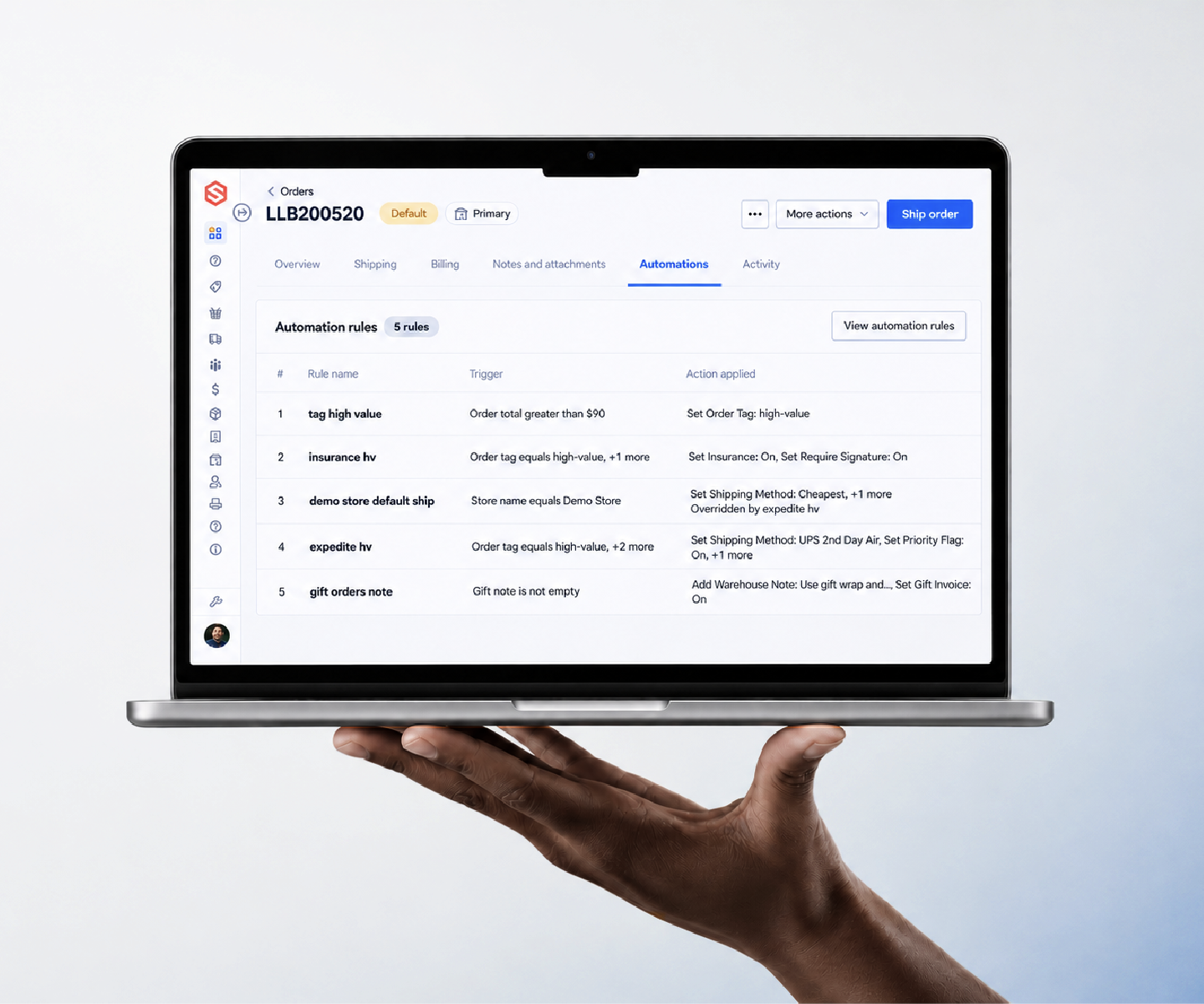
Automation Rules are client-owned, but the parent account can manage supported rules across permitted clients. Some settings, including order and product edits, can be managed at either level with the appropriate permissions.
Fulfillment operations managed by the 3PL
Client-specific administrative setup
Supported client rules managed from the parent account
Set up the client account, store, shipping methods, automation rules, and billing profile before processing its orders.
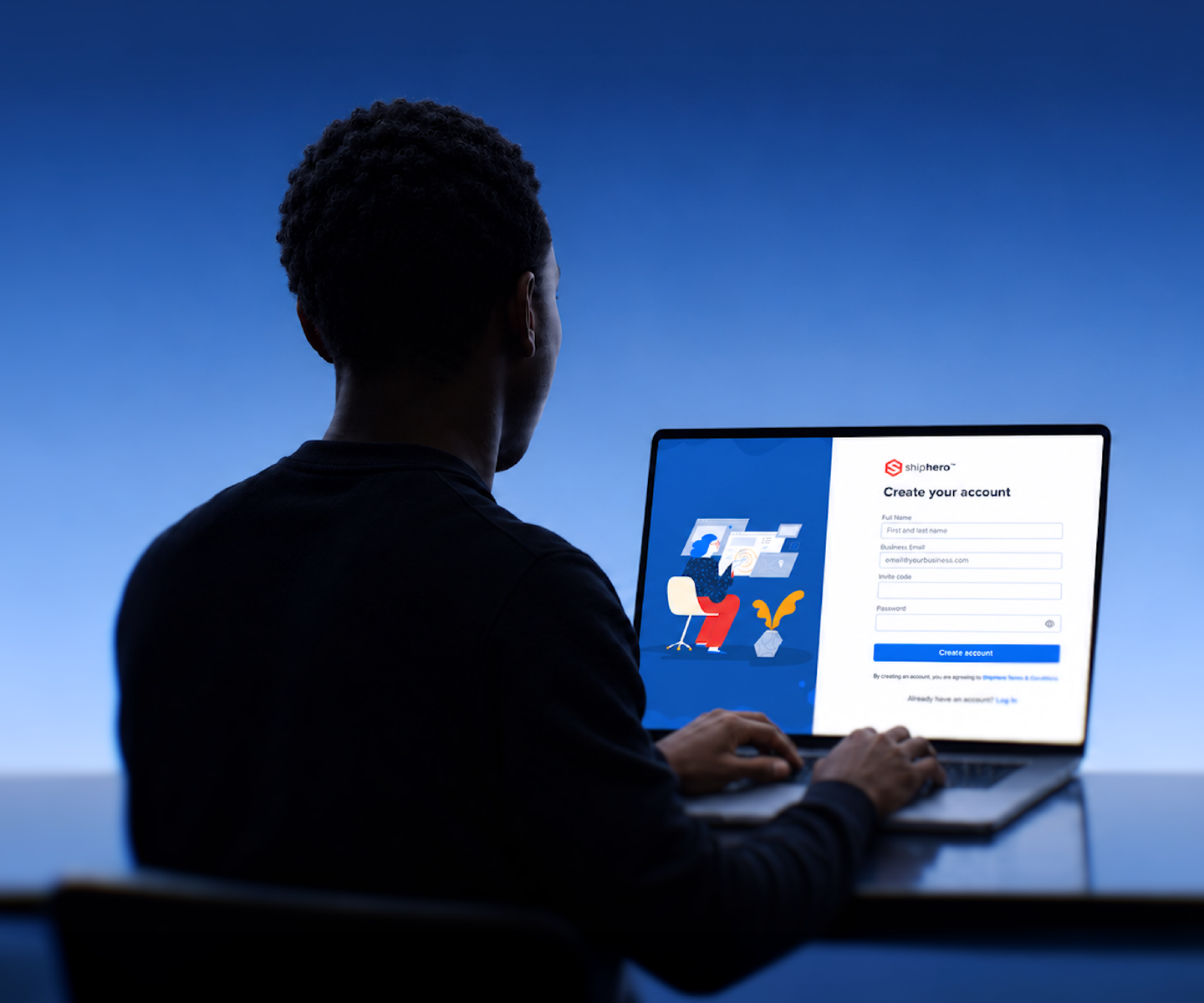
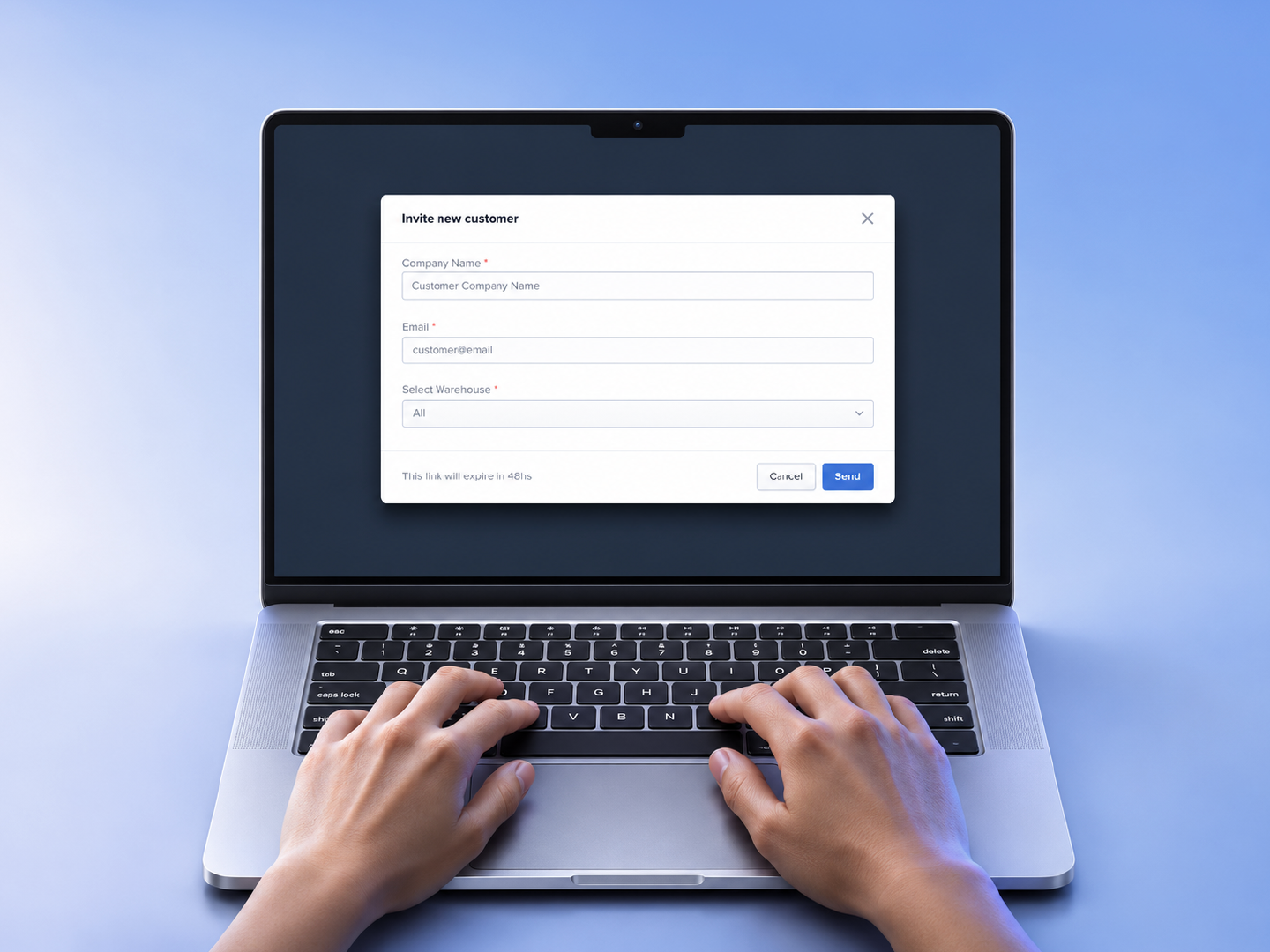
The documented setup sequence starts with adding or inviting the client. Then configure account settings and connect the store. Map shipping methods, create the client’s rules, and configure billing from the 3PL account.
An additional warehouse needs its own setup. The client must be active and have an associated billing profile. The warehouse and its default profile must already exist. Review client settings and allocation rules after connecting it.
Client account and store configuration
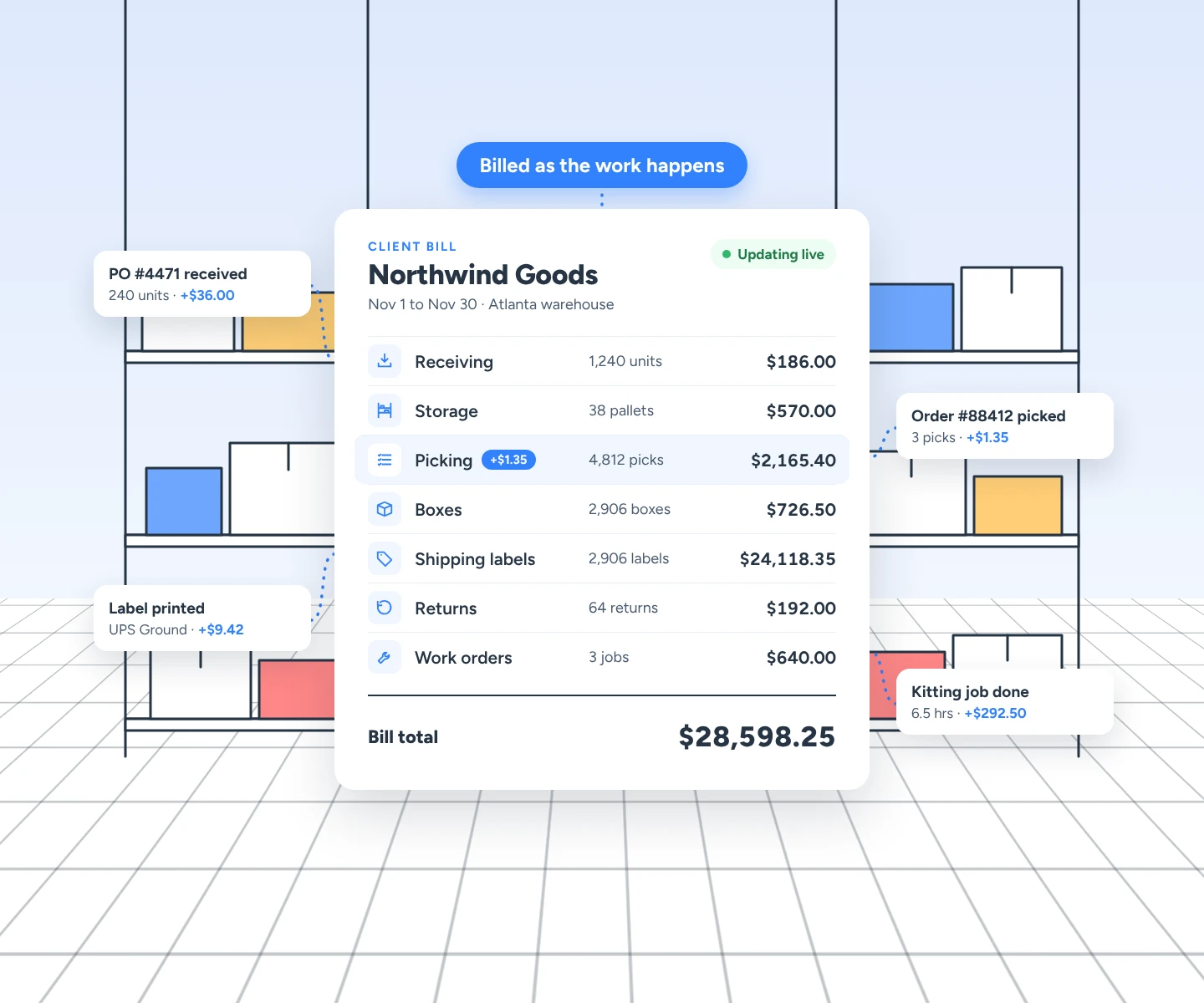
Shipping methods, rules, and billing profile
Prerequisites checked before adding another warehouse
Add a new client assignment to each staff member individually.
Add selected clients to multiple 3PL users without removing existing assignments.
Manage each account’s user setup separately.
Choose the 3PL account or a client in Users & Roles before managing its users.
Track additional-warehouse setup outside a defined sequence.
Check prerequisites, connect the warehouse, then review client settings and allocation rules.

“Now, I can easily train someone else to offer support.”
Maire Rosa
Owner, ecomspaces
10x
daily order volume
5x
client list
1 week
from onboarding to shipping on ShipHero
Can't find your answer? Our team can walk you through your setup.
Talk to our teamNo. Non-admin 3PL users can switch only into assigned clients. Admin 3PL users can switch into every client account. Warehouse restrictions are separate and do not limit billing visibility.
No. Bulk assignment adds clients and preserves existing assignments. Remove an assignment individually in that user’s Customers settings.
No. Warehouse restrictions do not limit billing visibility. Users with billing permissions can view all bills and profiles.
Yes. The parent 3PL account can manage supported Automation Rules for clients the user is permitted to manage. Client-owned settings and some other tasks still require work in the client account.
The role granting a permission takes precedence over a role denying it. Review the complete set of assigned roles when checking access.
Yes. An associated billing profile is a documented prerequisite, even if you do not use ShipHero’s billing tool. The guide permits a profile with no fees for that setup.